Projects and jobs
Below the views, the sidebar lists what there is to run, as a tree:
- a project (the branch icon) is a folder at the top of the root, most often a git checkout;
- under it, its own jobs, then the folders inside it (the folder icon), each with its jobs.
Every job has a play button and is one click from anywhere; a job that runs has an eye instead, to watch it. A project folds on its chevron, and this browser remembers the folded ones. The project of the page you are on stays open.
What the sidebar lists
With nothing pinned, the sidebar lists every folder you see with something to run, and every directory right inside a named workspace’s src/, the checkouts side by side there, with jobs or without. A project set not to show there (Show in sidebar off in its settings), a workspace’s home and the folders inside them stay out. A workspace with a Sidebar limit lists that many of its projects, the most recently committed first (see In the sidebar).
Pin adds to that, for you alone: a workspace, a project, a folder or a directory inside one, or a job. Pin a folder from the [...] of its page’s head, Pin workspace, Pin project or Pin folder, and a job from the [...] of its row in Jobs, Pin build. The sidebar draws itself again at once, the pin in its place: a deep folder under its workspace and project, in the sidebar’s order, its path below the project; a pinned job as a run item, the play button and its name, under its folder. A folder there for its pinned jobs alone lists those. A job pinned with a directory or args runs with them. The same item reads Unpin once pinned; what the sidebar lists only for the pin leaves it. A workspace’s home stays out, pinned or not. The API keeps the pins under /api/pins (see API).
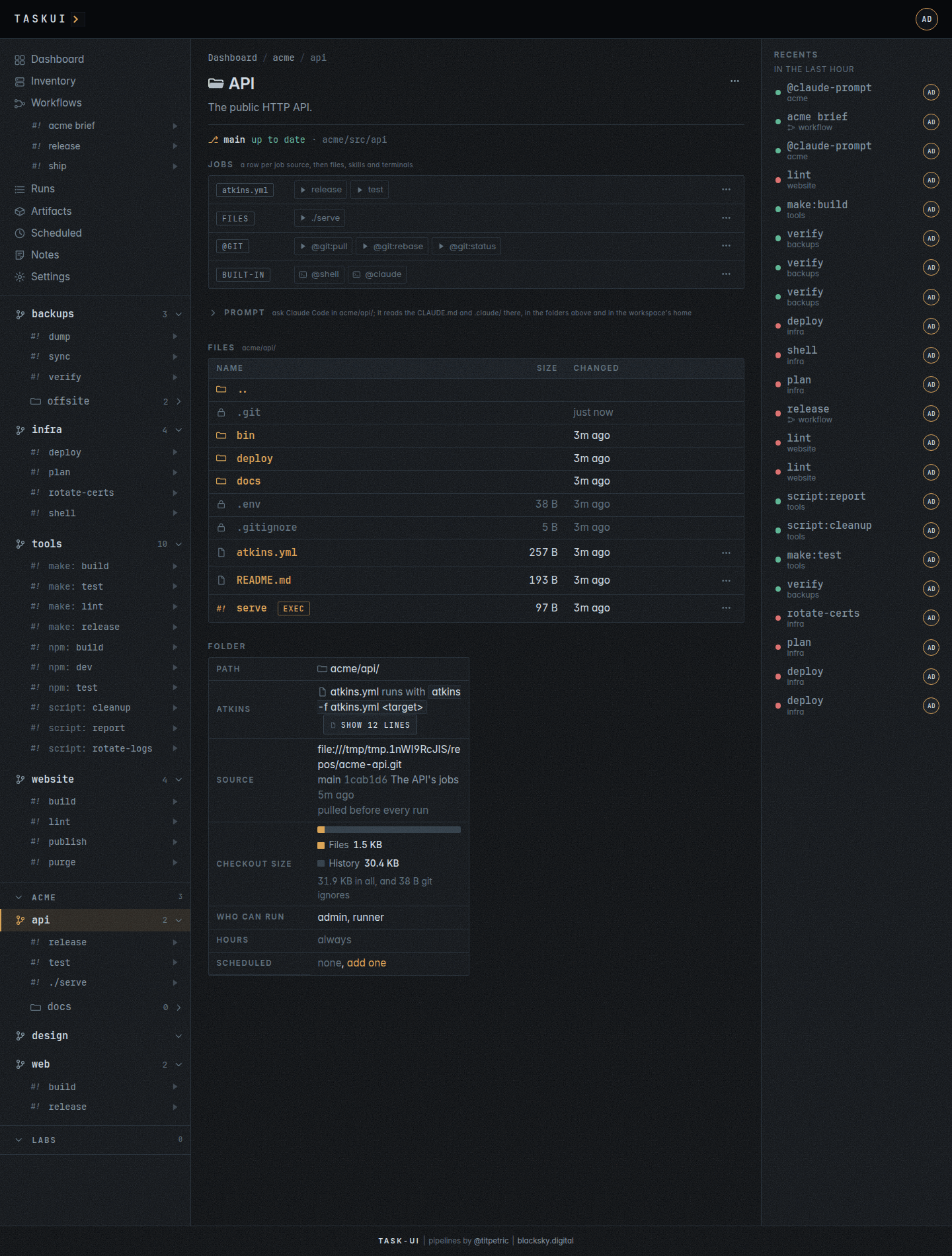
A workspace adds a level above its projects: a label row with the workspace’s name, and its projects folded under it. Their links carry the workspace, as /f/malta/dockerfiles. The projects at the top of the root are in the internal workspace, internal, and list first, without a label row; their links carry internal, as /f/internal/infra.
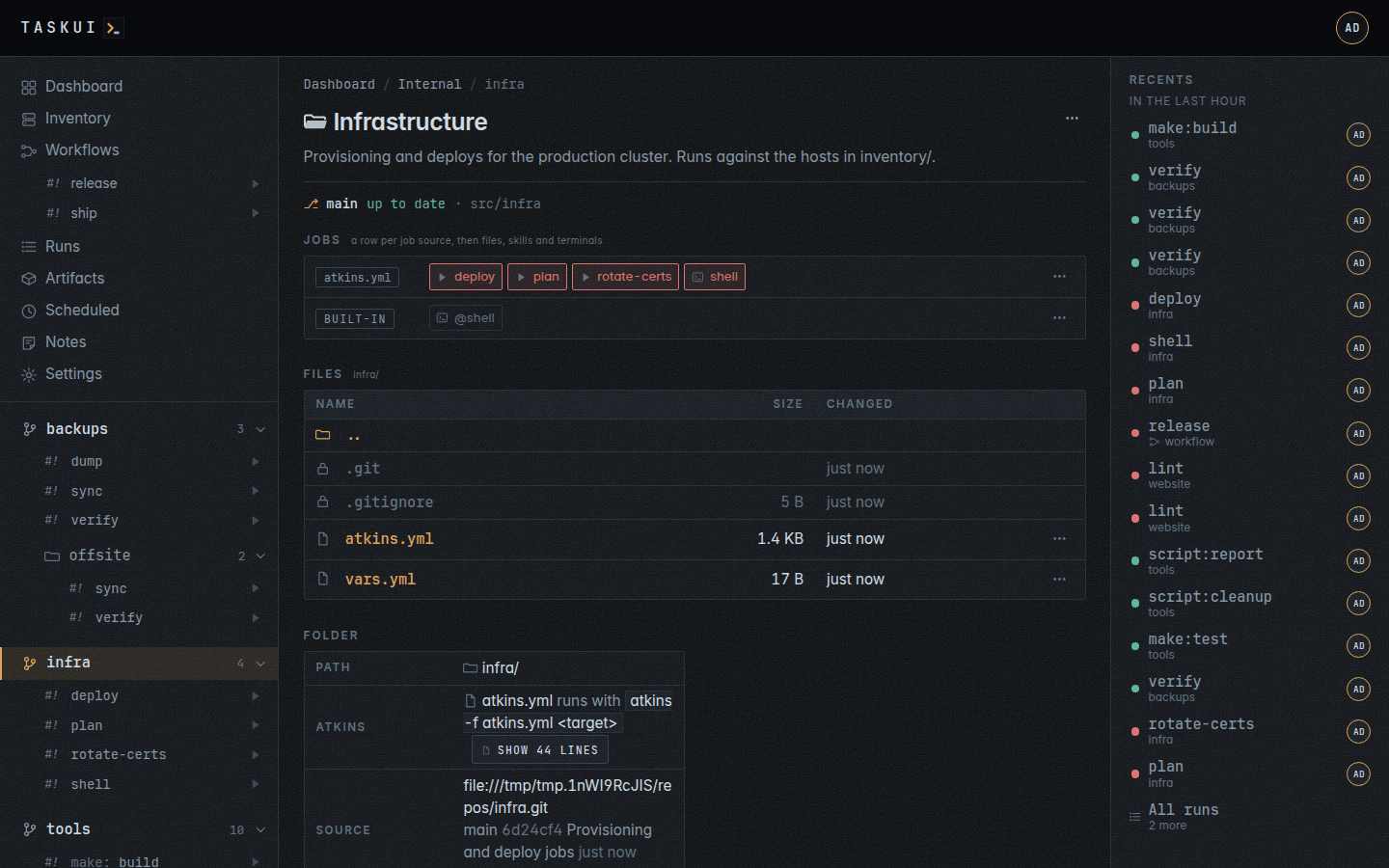
A user with Allow Edits on Projects, project/edit, adds a project from a git repository on Add project (see Settings). Its Workspace select clones the project at the top of the root, internal, or inside a named workspace (see Workspaces). With the Forgejo integration set up, a sync clones every repository of each organisation and user as a project of the owner’s workspace, on the repository’s default branch, and a push to the repository pulls the checkout; the project’s settings stay yours.
Move a project to another workspace
A project’s settings page, Settings, Projects, then the project, has the same Workspace select, on the workspace the project is in. Pick another one and Save moves it: web in internal becomes acme/web in acme, and acme/web picked back to internal becomes web. Before the move a dialog names the new ID and every row that stays behind.
What moves and what stays:
- the checkout moves, renamed in place, with the folders inside it;
- the project row moves, with its title and allow lists, and the project takes the hours of the workspace it moves into;
- the users whose folder list names the project, or a folder inside it, get the new ID in its place, and access follows the project;
- the pins of every user that name the project, a folder inside it or a job of either get the new ID too, and the sidebar keeps them;
pinsin the API’s answer counts them; - the runs stay under the old ID: their pages, recordings and artifacts still open from the Runs page;
- schedules, imported env files and workflow steps that name the old ID stay behind, as do secrets scoped to a folder of an older instance. The dialog lists them, as does
leftin the API’s answer; change them to the new ID, or move the project back, to bring them along.
A move refuses with 409 while a run of the project, or of a folder inside it, is going, and while the project is moving already. It also refuses a workspace itself, a workspace that does not exist, an ID that a project, a workspace or a directory holds, and a workspace on another file system, as a move renames and does not copy. Only a project at the top of a workspace moves; a folder inside a project stays with it.
To move one through the API, name the workspace on the configure request:
curl -X PUT -H "Authorization: Bearer $TOKEN" \
  -d '{"title": "Web", "workspace": "acme"}' \
  https://task.example.com/api/projects/web
The request configures as well: send the fields the project has. It responds with the project row under its new ID, and left: each row that still names the old ID, as {kind, id, folder, name}.
Where the jobs come from
task-ui reads the files a folder has and lists their targets; task-ui itself never edits them. A job, or a Claude run, may change files in the folder when you ask it to.
| Source | File | A job is |
|---|---|---|
| atkins | atkins.yml, .atkins.yml |
a job with a desc; show: false hides one |
| task | Taskfile.yml |
a task with a desc; internal: true hides one |
| make | Makefile, makefile, GNUmakefile |
a target; target: ## text or a comment describes it |
| npm | package.json |
a script, run with npm, pnpm, yarn or bun by the lock file |
| composer | composer.json |
a script, described by scripts-descriptions |
| script | scripts/* |
a file; its first comment describes it, # interactive: true makes it take input |
A pipeline file, atkins.yml or a Taskfile, speaks for its folder: the folder lists that pipeline’s jobs, and the files beside it are the pipeline’s business. Without one, the folder lists every source, and a job name that two of them share gets its kind in front (make:build, npm:build). A folder that is itself a scripts directory with a pipeline also lists the scripts beside it that the pipeline does not run, under their own names, such as a bash.sh with exec bash and # interactive: true, a terminal to work in.
Every directory under the root that has something to run is a folder, as deep as they go. Under a folder with a pipeline, the sidebar lists only folders with a pipeline of their own, and the Makefiles of a Go tree do not become folders; under a plain folder they do. Hidden directories, node_modules, vendor and testdata are never looked into.
Discovery skips what a checkout’s .gitignore ignores: build copies, caches, dependencies. One kind of ignored directory lists all the same: a directory right below a workspace or a project that holds a job source, an atkins.yml, a Taskfile, a Makefile, package.json scripts, at its top or in a directory inside it, such as a checkout the workspace keeps beside its files with its jobs in scripts/. The folders inside it follow the Recursive of the workspace or project above it. An ignored directory with nothing to run, or one deeper down, stays out; a project row on the directory configures it, as on any folder.
A project or a workspace with Recursive off in its settings lists itself and its top-level folders alone, web and web/api but not web/api/v1, counted from its own folder, in a workspace as at the root. The deeper folders leave the sidebar, the folder pages, the dashboard and list_jobs; their /f/ path opens as a directory of the folder above, to browse, and Files still holds the whole checkout. Recursive hides a folder, it does not disable what runs there: a schedule, a pin or a run start that names a deeper folder resolves it all the same, for a user whose folders hold it.
An agent sees the same list over MCP: list_jobs returns the folders, their jobs, whether its user may run each, and how each last went.
A pipeline with errors
atkins lints a pipeline before it lists its jobs, and lists none of a pipeline that fails: a step that calls a job the file lacks, such as task: go:fmt with no go:fmt job. task-ui shows what atkins found on the folder’s page:
- The folder’s page, and the page of every workspace or project above it, opens with an alert, “1 pipeline has errors”, and a line for each finding: the folder, linked, the pipeline file, the job and atkins’ words for what is wrong; hover them for the kind of issue. Past five lines the rest fold under Show more.
- The folder’s row in the sidebar carries a red
!with the count of findings where its count of jobs goes; hover it for the first. - The dashboard has a line that names the workspaces with a broken pipeline, each linked to its page.
GET /api/foldersandlist_jobscarry the findings aserrors, each with itspath,job,issueanddetail.
A finding reads as atkins prints it: job build: step references task 'go:fmt', but job "go:fmt" not found names the job that holds the step and the reference that does not resolve. Fix the file, by adding the job or correcting the reference, and the next look at the folder lists its jobs again: task-ui asks atkins afresh once the file changes.
A folder’s page
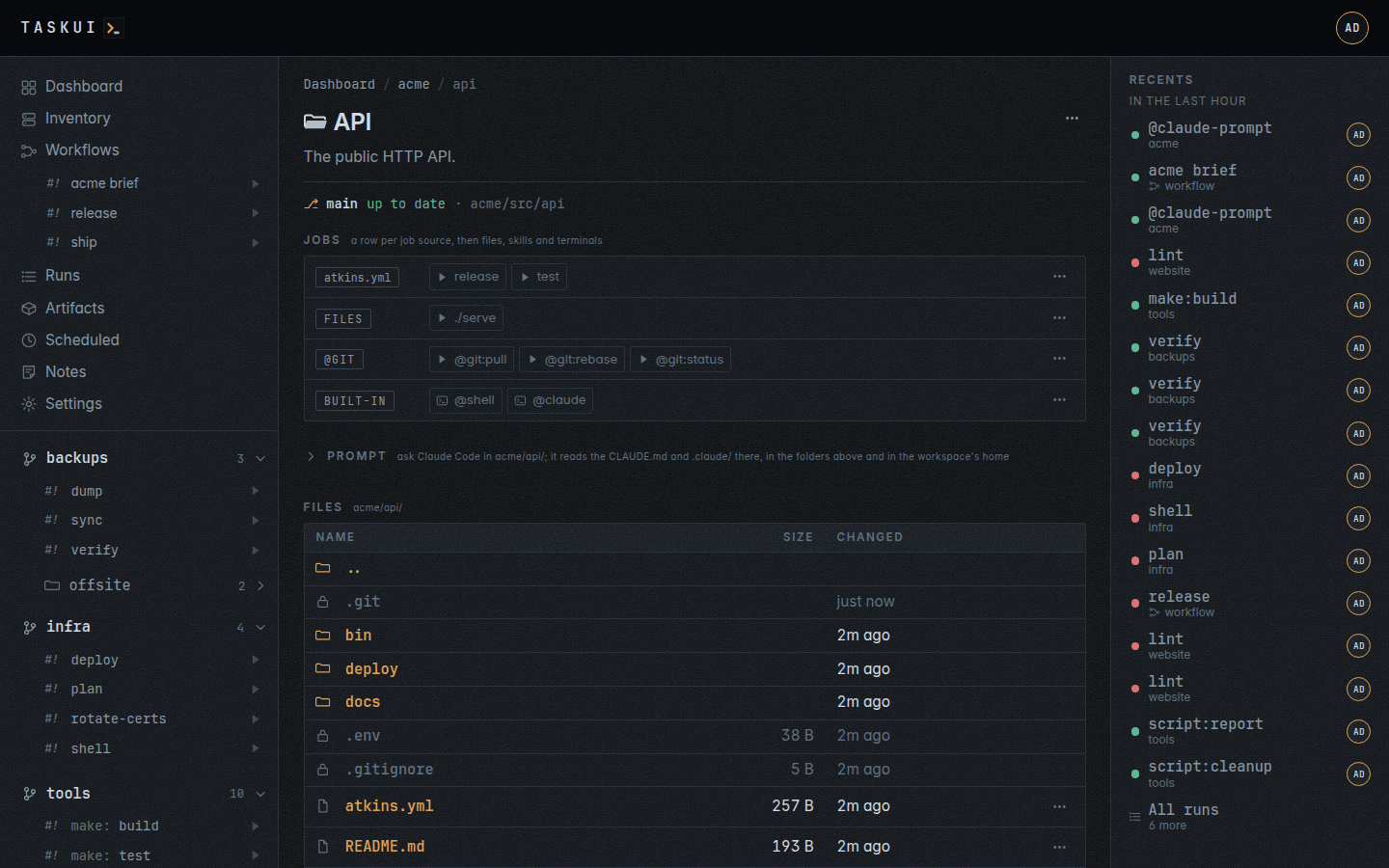
Open a folder from the sidebar:
The
[...]menu at the top right of a project’s or a workspace’s page,/f/internalamong them, behind the rule of each item:Edit project, with
project/view, or Edit workspace, withworkspace/view, opens the settings page, the one Edit project in Settings, Projects opens;Pull now, on a checkout with the
gitskill, for a user who may run the folder’s jobs, runs@git:pullthere;Remove checkout, last and in red, on a project that is a git checkout, with
project/delete, asksRemove the folder apps and its checkout? You can clone it again from <remote>., deletes the folder with its files and its configuration, and goes on to Projects with a notice. The project’s settings page has the same item in its[...]menu.Pin or Unpin, the workspace, the project or the folder, for anyone signed in (see What the sidebar lists). A folder inside a project, and a directory’s page, has this item alone.
The git line: under the title, on a folder’s page and on the page of a directory inside it (see The git line).
Jobs: everything that runs there, a row per group, each with its label and a named button per job. A job source’s row carries its file,
atkins.yml,Taskfile.ymlorMakefile, linked to the place it runs in; a directory or a folder inside with targets of its own gets a row of its own, astask/atkins.yml. Rows follow for the files that run,./<path>, each atkins skill that applies, such as@gitwith@git:pull, and, for an admin, the built-ins@shelland@claude. A button carries the play and the job’s name, coloured by its last run: green when it succeeded, red when it failed or someone stopped or killed it, grey when it never ran. While the job runs the button is an eye that attaches to it; a job that takes a terminal shows the terminal where the play goes; a user who may not run it gets a#!linked to the job’s page. Its title names the job and what it does; a job that takes args opens a field for them first. Each row ends in a[...]with, per job, Run and summarize, which runs the job and has Claude summarise the run on its page when it ends (see Runs), View the last run, the Summary of that run once Claude wrote one, History, Pin, and, in a workspace with hours, Run force; without hours a job forces from its run’s window. Kill ends a run in progress. The buttons follow the runs as they start and end, with no reload.Prompt: the box that asks Claude Code there, below the jobs (see Prompt).
Files: what the folder holds, dot entries too, the directories first, each with its size and when it changed, and
..up a level. A directory opens as a page of its own; a file opens in a window, an image shown, markdown rendered, text coloured and cut past 1 MiB, with Download beside and in the row. A directory that is a folder links to the folder’s page. A folder the listing lacks, such as one a project row places elsewhere, gets a row of its own. A directory with targets of its own, a pipeline file, Makefile, package scripts or scripts folder read as a folder’s are, that discovery leaves out, such as the Makefile of a directory inside a checkout with anatkins.yml, lists them on its own page. The sidebar and the folder list stay as discovery reads them: the jobs of such a directory run as the folder’s in that directory. They run in that directory under the folder’s allow rules and hours, and pull the folder’s checkout; the API names them withdir(see Runs). Each has its page and history under the directory, such as/f/acme/api/tools/build. A file that runs, executable or with a shebang on its first line, carries#!and exec, and its button in Jobs,./<path>, runs it from the top of the folder; the file’s window holds the same Run. Its history is at the file’s path under the folder.Sealed entries:
.gitand every dot file, such as.env,.gitignoreor.claude/.secret, list with a lock and open nothing, on the page or over the API, nor does a path through.gitor a symlink to a dot file. A dot file never runs as a job. A dot directory other than.git, such as.claude/or.atkins/, opens as any directory does, and so do the files in it whose names have no dot in front. A symlink that leads out of the checkout opens nothing either. Whoever has the server reaches the sealed entries there, and so does a job, which runs as the server’s user.Folder: its path, its sources, who can run it, its workspace’s hours, the files it includes, its schedules. Show beside a pipeline file opens it, coloured, in a window. A folder in a git checkout also shows the checkout’s size: its files, and the history in
.git.
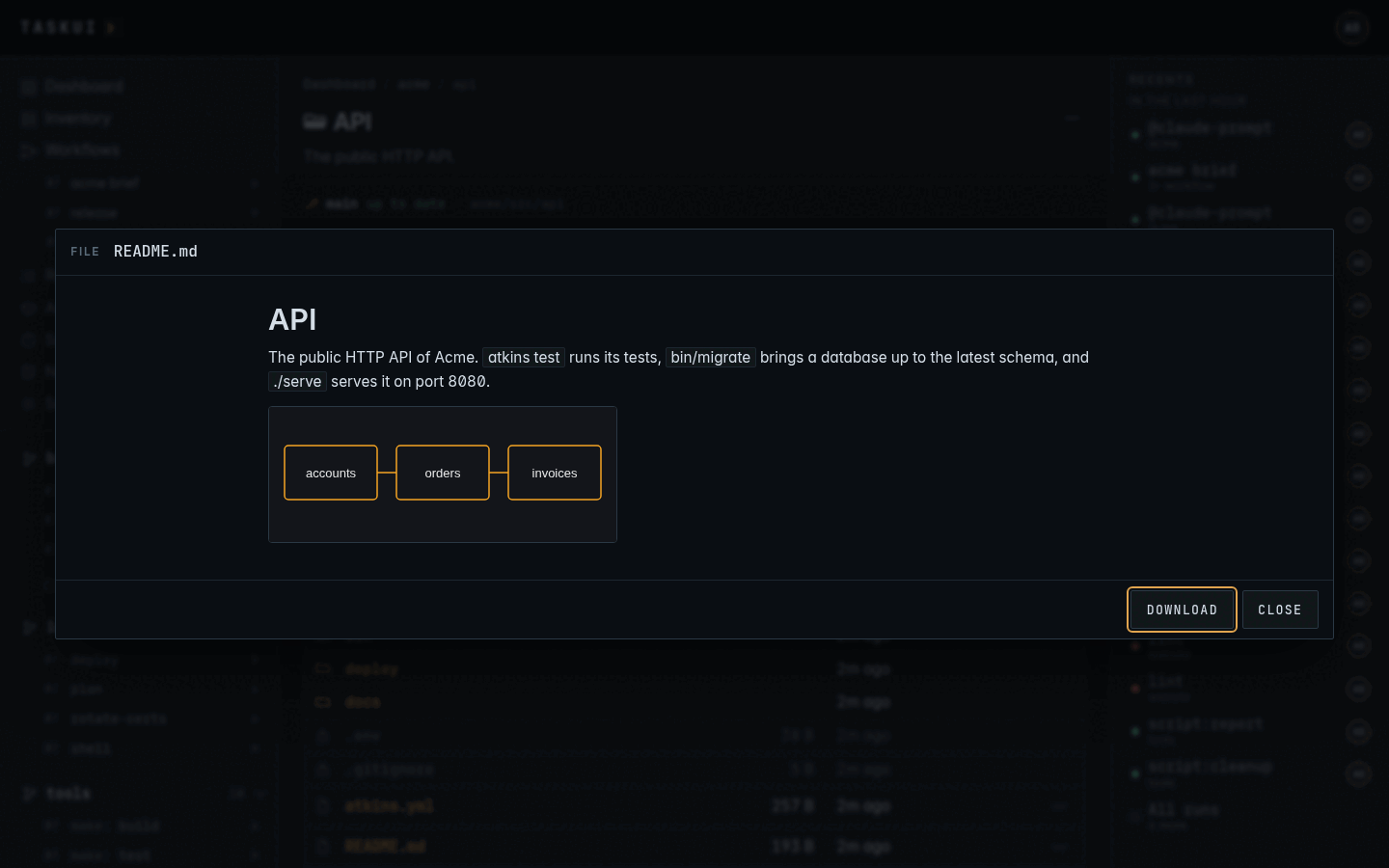
A link to the folder’s page with #file=<name>, such as /f/acme/api#file=README.md, opens that file of its Files in the window on load.
The git line
The line under a folder’s title, and under a directory’s inside a folder, reads ⎇ main ↑1 ↓3 ● 2 files changed or untracked · malta/dockerfiles: the checkout the page is in, the nearest one up from it and no higher than the root: its branch, or detached and the commit of a checkout off any branch; ↑ the commits to push and ↓ those to pull from its upstream, as last fetched; ● the files changed or untracked, counted; then where the checkout is. A checkout level with its upstream and with nothing changed reads up to date. A click on the count folds the checkout’s status out under the line, and folds it back: a row per changed or untracked file, the status as git’s short code and as a word, and the path, a rename naming where it came from. Hover the line for the upstream. The line reads git status and changes nothing; the pulls are jobs of the git skill. The links to a project’s or a workspace’s settings are in the [...] menu of its page head (see A folder’s page).
The sidebar reads the same status. A project’s or a folder’s icon turns amber while git has files changed or untracked under it, and hovering the icon says how many. A clean checkout, or a folder outside git, keeps its plain icon, the open page’s own row included.
Skills
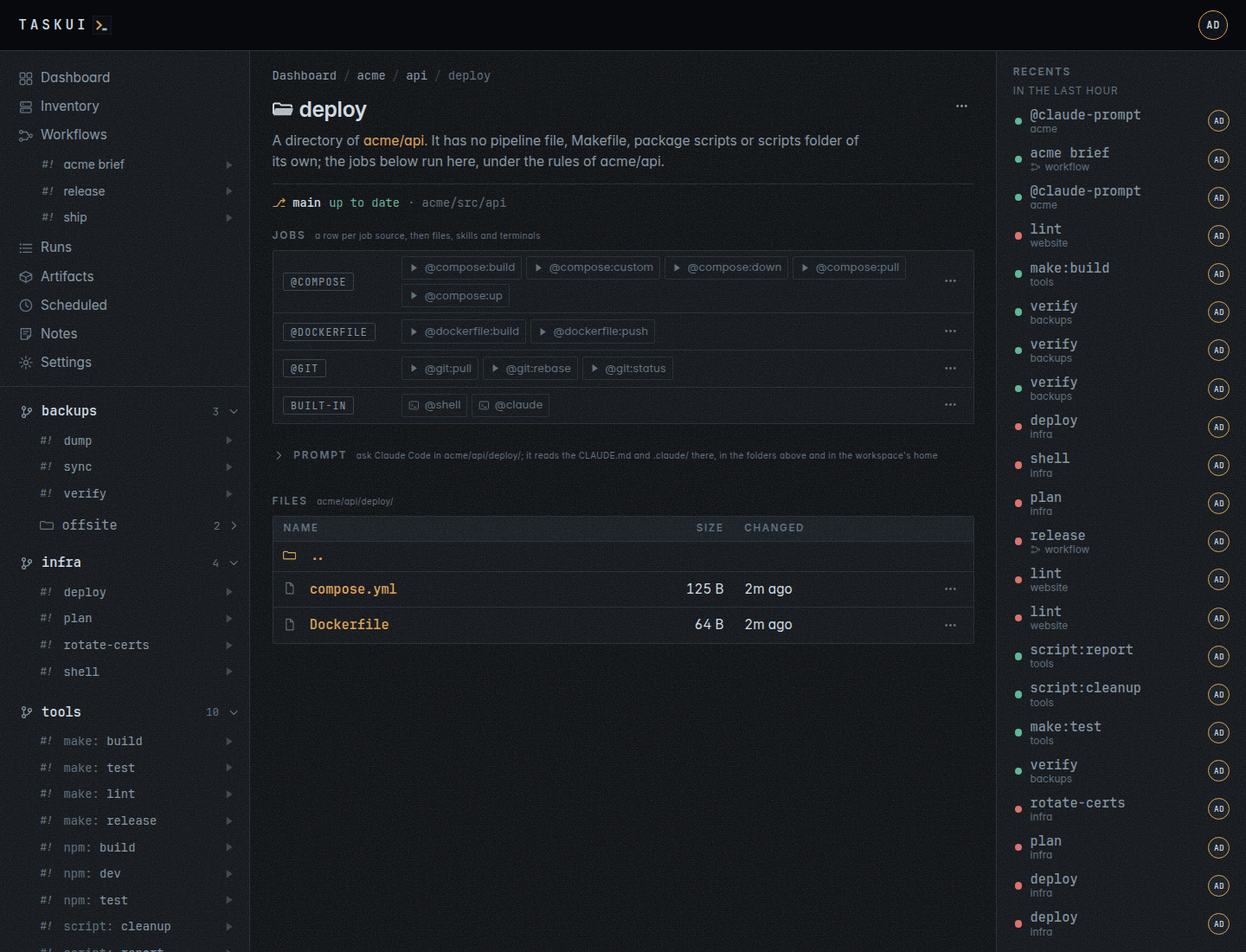
An atkins skill that applies in a directory adds its jobs to the folder, each with its page, such as @git with @git:pull, @git:rebase and @git:status, or @compose with @compose:build, @compose:custom, @compose:down, @compose:pull and @compose:up. A skill comes from a .atkins/skills/ folder of the directory or of any directory above it, a workspace’s among them, and applies where its when: holds; a job of it with a when: of its own that fails, such as compose: build beside a compose file that builds nothing, has no row (Workspaces shows how to write one). task-ui asks atkins -l --json --all in the directory as a page opens, and keeps what it lists until the pipeline file or a skill file changes, or its time runs out; an atkins that is missing, fails or runs out of time lists no skills:
| What | Kept for | Times out after |
|---|---|---|
The git line, git status |
5 seconds | |
The skills, atkins -l --json --all |
30 seconds | 3 seconds |
A job with the args badge, such as @compose:custom, takes arguments: its Run… opens a field for them under its row first (see Runs).
A skill job is the job @<skill>:<job> of the folder, such as @git:status: it runs atkins git:status in the directory of the file the skill’s when: matched, the checkout for git, the directory of the compose file for compose, under the folder’s allow rules and hours, and keeps its history under that directory. A skill that matched above the folder runs in the directory of the page, where atkins finds it again.
compose up and down of the compose project task-ui itself runs in ask first: they stop or recreate the instance and every run in it. task-ui reads its project from the compose label of its container, or from TASK_UI_COMPOSE_PROJECT, and a compose file’s project is its name:, or its directory’s name.
The API answers the git line and the skills with GET /api/folders/{id}/actions?dir=, for whoever sees the folder.
Enter Shell
An admin gets the button @shell among the built-ins of the Jobs table: it starts bash -l in the folder’s directory, or in the directory the page browses, with the run’s window attached and the keyboard yours: the job @shell of the folder, run with the environment, secrets and keys of any job there, and its history keeps under that directory. Close the window and the shell keeps running; Attach in its place opens it again, exit ends it.
Admins alone start a shell: the job’s allow list names the admin role, no folder or job rule widens it, and task-ui checks the shell permission, Enter Shell in Settings, Permissions, besides. POST /api/runs with @shell answers 403 to anyone else, and the row shows to admins alone. No schedule or workflow step takes @shell: there is no one at its keyboard.
Enter Claude
Below it, an admin with a token in the Claude Code integration gets the row @claude: Claude Code in a terminal in the folder’s directory, or in the directory the page browses, the job @claude of the folder, which runs task-ui agent shell, a shell as @shell is: for admins alone, POST /api/runs with @claude answers 403 to anyone else, no schedule or workflow step takes it, and it pulls nothing. Claude reads the CLAUDE.md and .claude/ of that directory and above, and the run’s history keeps under the directory.
Prompt
A user with Allow Edits on Prompts, prompt/edit, and a token in the Claude Code integration gets a Prompt box on every folder page and every directory inside a folder: open on a workspace’s page, on /f/internal, which prompts at the root, and wherever its directory holds a prompt, folded elsewhere until clicked. The prompt runs @claude-prompt of that folder and directory as you, with Claude Code there. It reads the CLAUDE.md and .claude/ there and above. An admin picks who the prompt runs as, Runs as in the box’s foot, the admin’s own login unless changed: the thread, its run, the Claude token, the keys and the secrets are that user’s, who holds prompt/edit and sees the folder. A reply keeps the thread’s user, and the prompt in the header takes the same pick.
Claude also reads what task-ui is, from config/context.md, with your name, role and permissions, which say what you may do, and the rule that a file it writes to $TASK_UI_ARTIFACTS stays as an artifact (see MCP).
No window opens. The question shows under the box at once, open, then working while the run goes, and Claude’s answer, in markdown, lands under it when the run ends, without a reload. Each thread links its run, which keeps the output. Reply under a thread asks again: Claude reads the whole thread, its earlier answers among them. The box lists the last 20 threads asked in its directory, by anyone; the Notes board lists none of them.
Click a question, or a reply of yours, to edit it: add what you need and Save, or Ctrl+Enter; Esc cancels. The question runs again on the edited text, with the thread up to Claude’s answer to it, and that answer changes in place: its old text stays, dimmed and marked working, until the new one lands. The thread gets no new reply, and the run keeps its ID: the run link opens the latest attempt; the attempt before goes with its recording and artifacts. The question shows edited beside its time.
curl -s -X POST https://task.example.com/api/prompts \
  -H "Authorization: Bearer $TOKEN" \
  -d '{"folder": "malta", "dir": "dockerfiles/blog", "prompt": "what does this image build"}'
curl -s "https://task.example.com/api/prompts?folder=malta&dir=dockerfiles/blog" \
  -H "Authorization: Bearer $TOKEN"
The reply is the note, with dir malta/dockerfiles/blog; GET /api/prompts lists the threads there, each with its replies, and parent on the POST replies in a thread. The run is the folder’s, as its @shell is: malta/dockerfiles/blog/@claude-prompt, folder malta, dir dockerfiles/blog and job @claude-prompt, with the absolute directory in TASK_UI_PROMPT_DIR; the recents and the runs list show it under the folder. A prompt at the root runs as @claude-prompt of the folder internal, and its run shows as @claude-prompt. The run gets the secrets of the folder, as its other jobs do, and runs out of the workspace’s hours too, as it runs none of the folder’s jobs; no POST /api/runs starts it, as a prompt needs its thread. Who sees the folder sees its prompt runs with the prompt/view permission; who asks always sees theirs, and may stop it. One prompt runs per directory: another there waits for it, and prompts in two directories run at once. A workspace’s prompt route works the same way (see Workspaces).
Enter at the header’s prompt, after the logo, asks where the page is: in the folder or the directory of its page, a project’s or workspace’s settings included, about the run on a run’s page, and at the root anywhere else. Claude’s answer lands in a panel under the header, in markdown, with no reload; the panel names the place and links the thread. A click on the logo opens and closes the panel, which keeps its thread in the tab from page to page.
With the Beszel integration set up, a prompt also sees the Inventory: Claude gets the hosts with who signs in to each, and inspects them over ssh with the keys of the run. A question such as “list running containers on all hosts, check for any usage of php or frankenphp images” gets an answer per host.
A run’s page has a prompt of its own, about the run and its output, with its threads kept on that page (see Runs).
A job’s page
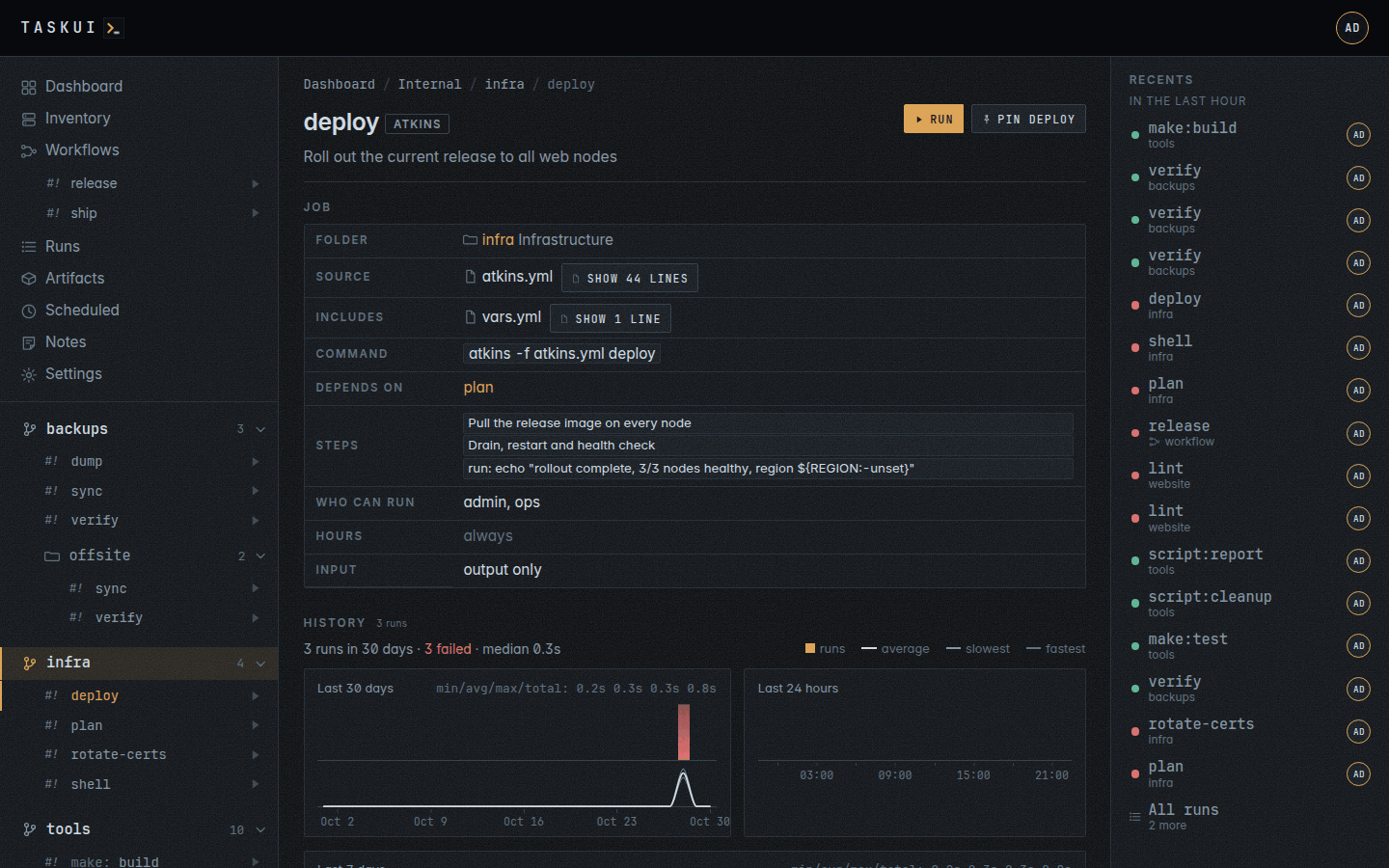
Open a job from the sidebar or a card: the command it runs, its steps and dependencies, who can run it and when, its History of runs, and its Scheduled section (see Scheduled).
The History opens with the job’s activity: its runs of the last thirty days by day and of the last 24 hours by hour, as on the Runs page, and a line of how long its latest thirty runs took, a red mark at each that failed. Hover a point for the run’s time, outcome and duration.
Pulled before every run
A folder in a git checkout pulls it with git pull --ff-only before every run, in the run’s own terminal, and a job always runs the latest version. A folder inside a checkout pulls the checkout. When the pull fails, the run fails with it. A project in a workspace whose home is a checkout pulls the home first (see Workspaces).
Keys for a run
A run gets SSH keys only through an ssh agent served for that run alone: the instance keys linked to the role of whoever started it, or to them by name (see Settings), and the SSH keys of its workspace its links let through (see Workspaces). The agent’s socket is in a 0700 directory under $XDG_RUNTIME_DIR, else /run/task-ui, else /tmp, and no key file lands on disk; a start of task-ui removes the directories a dead process before it left. A scheduled run gets the keys of the schedule’s creator. The job gets SSH_AUTH_SOCK, and ssh, git, rsync and terraform’s agent authentication use it. The keys stay in memory and the agent ends with the run; the terminal says which keys it loaded, or (none). A run with no key has an empty SSH_AUTH_SOCK, never the server’s own.
The pull before a run, and a clone, use the git key, the one SSH key marked for git on its edit form, from an agent of their own; nothing reads the server’s ~/.ssh. terraform’s agent authentication uses only the agent.
A checkout’s .ssh/ folder is not loaded. The SSH keys page warns about one with private keys in it: upload a key the project needs as an instance key and link it.
Hours
A workspace’s office hours gate every run of a job in its folders, the built-ins too (see Workspaces); a project and a job have no hours of their own. Out of hours Run fails. Run force still works, but asks why: it needs a reason, keeps it with the run, and every list of runs shows it.
Who may run what
An admin runs everything. A runner runs a folder’s jobs unless its allow list names other users or roles. A viewer runs nothing, but sees the jobs and watches the runs. Run Jobs, a permission of Settings, Permissions, decides who runs at all; @shell and @claude are the admins’ alone; a user with user/edit sets which folders each user sees on the user’s edit page.
Previous: Notes · Next: Workspaces · Contents