Workspaces
A workspace is a directory under the root with two directories in it: home/, the HOME of every run in the workspace, and src/, where its projects live side by side, each a checkout of its own, none inside another. The home is a checkout of the workspace’s home repository, what an organisation’s projects share, such as .atkins/skills, a CLAUDE.md with .claude/, and its policies, or an empty directory while the workspace has none. You name the workspace’s folder, and the folder is the namespace of its projects: dockerfiles cloned into the workspace malta lives at <root>/malta/src/dockerfiles, its folder ID is malta/dockerfiles, and it opens at /f/malta/dockerfiles. The home is the folder malta/home, at /f/malta/home.
<root>/malta/                 the workspace
<root>/malta/home/            the home repository's checkout, HOME of every run in malta
<root>/malta/src/dockerfiles/ a project, the folder malta/dockerfiles
<root>/malta/src/apps/        another, malta/apps
Every project is in a workspace. The default workspace, internal, is the root itself, laid out the same: <root>/home is its home, an empty directory task-ui makes, and <root>/src holds the projects cloned at the root, whose pages open under /f/internal/: <root>/src/infra is the folder infra and opens at /f/internal/infra. A link without the internal, such as a bookmarked /f/infra, redirects there for good, its query kept. _ is the default workspace’s former name: the migration moves every stored _ (runs, workflow steps, schedules, secret scopes, notes, pins, env files) to internal, older runs of the Claude jobs that already carried internal now sit in the root with the rest, and a link with /f/_ redirects to /f/internal for good, its query kept. /f/internal lists the projects at the root you can see. task-ui adds the default workspace on its first start, when it has no workspace at all, and makes the home and src of every workspace it has when it starts. The default workspace deletes like any other (see Delete the default workspace). No workspace, project or directory under a workspace takes the name internal, _, home or src; discovery skips a directory of src named internal or _, and a directory of the root or of a workspace that is neither home nor src is not a folder.
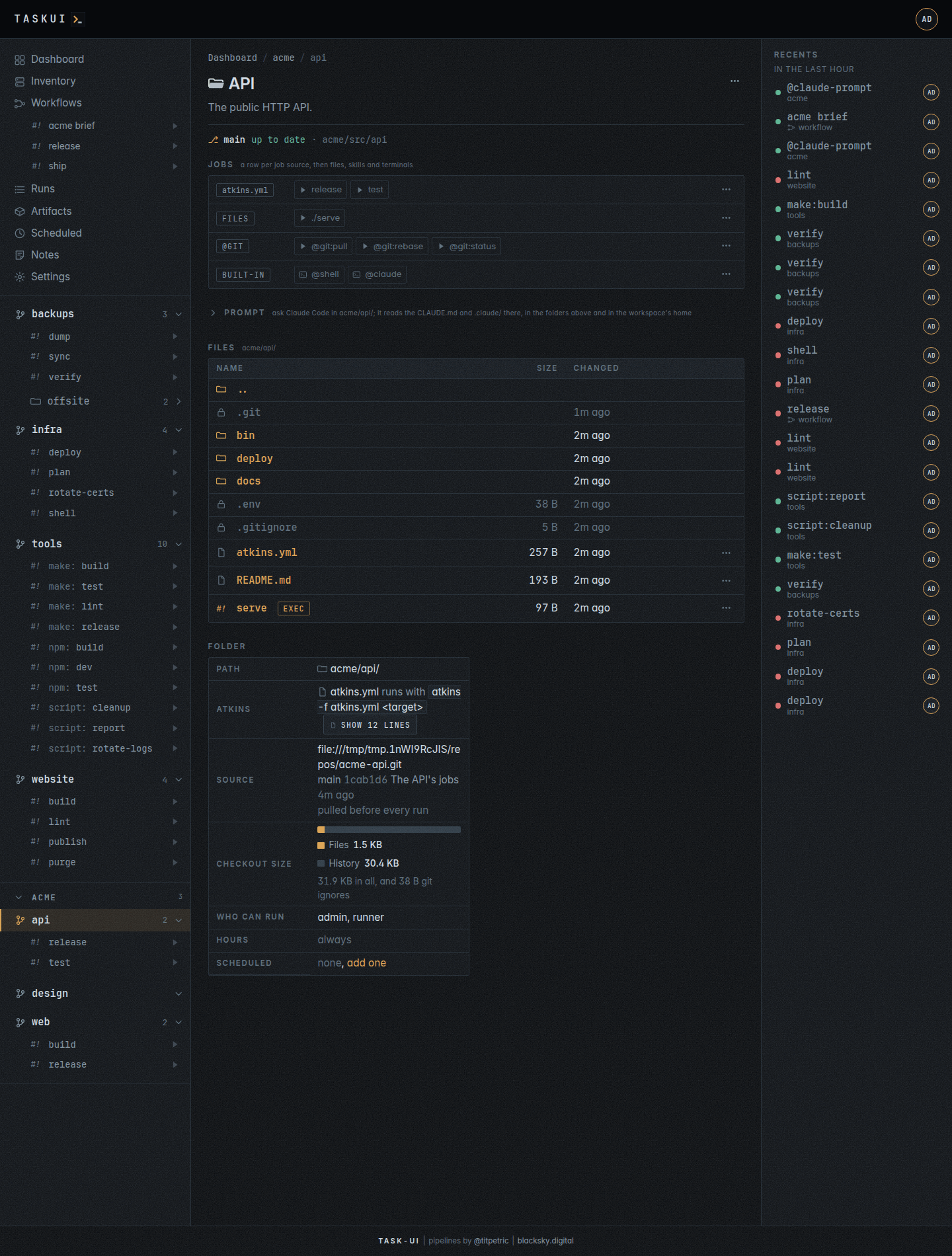
The home
Every run in a workspace gets the workspace’s home as HOME, always: the server’s HOME is no fallback. The tools a job calls find the workspace’s files there:
- atkins reads its skills from the
.atkins/skillsof the working directory and of every folder above it, nearest first, then from$HOME/.atkins/skills: the home’s. A project skill of the same name shadows the workspace’s. Its pipeline is the project’s own. Its history,ATKINS_DB, is~/.atkins/atkins.dbin the home, and the instance’s copy under the server’sHOME, which the Tooling charts read, is its mirror. - Claude Code gets the home as a directory it reads, with its
CLAUDE.mdand.claude/skills, beside its working directory. bash -lreads the home’s.profileor.bash_profile, when it has one.
The convention for a home repository is a repository named like the organisation: malta/malta is the home of the workspace malta. The Forgejo integration follows it when it syncs a git host, and a workspace made by hand does well to. The tooling of an organisation then has one obvious place.
The workspace’s page, /f/malta, lists the home’s files in its Home section, in the table of the Files section: a directory opens its page, a file opens in the preview window, a dot file and .git list sealed and never open. The home is a folder of its own, malta/home, with the jobs of its atkins.yml when it has one, and @git:pull runs on it as on any checkout; the home is no project: the Projects list, the sidebar and the pins leave it out.
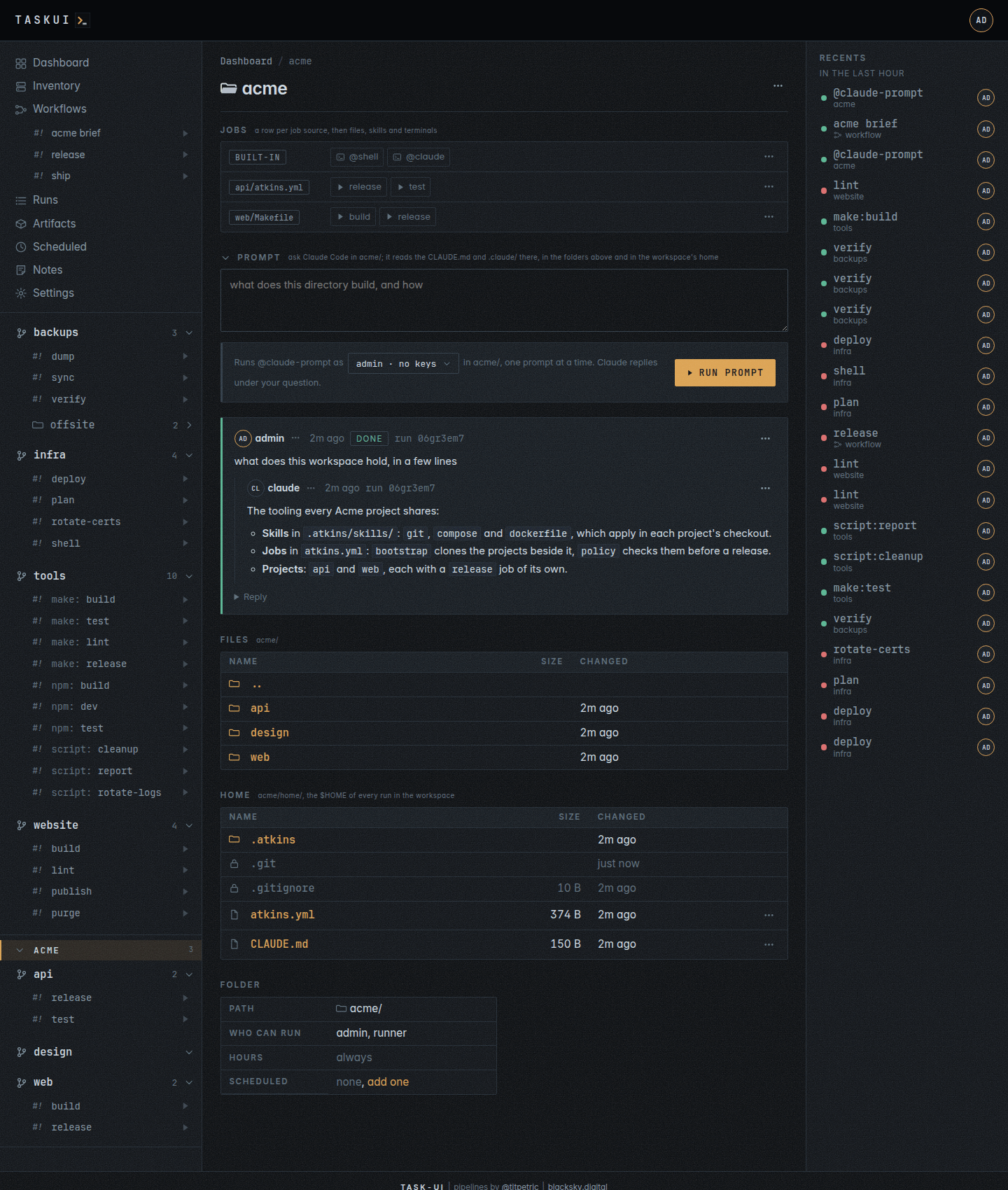
Whoever commits to the workspace’s home repository controls that workspace’s runs: its .profile runs first in every bash -l, and its skills and CLAUDE.md shape every job and every prompt there. What the instance keeps in the server’s own HOME stays in use, each through a variable the run gets when the server does not set it itself:
| What | Variable |
|---|---|
registry logins of docker login |
DOCKER_CONFIG, ~/.docker |
| Claude Code’s settings and sessions | CLAUDE_CONFIG_DIR, ~/.claude |
| the caches of XDG tools, Go’s build cache among them | XDG_CACHE_HOME, ~/.cache |
| Go’s modules | GOPATH, ~/go |
Everything else of HOME is the workspace’s: the git identity, ~/.gitconfig, the shell history, the XDG configuration, data and state. ssh reads ~/.ssh from the user’s entry in the password database, and its configuration and known hosts stay the server’s. The run also gets TASK_UI_HOME, the home’s directory, the same as HOME.
Skills
The skills of a workspace’s home, its .atkins/skills/, add jobs to every project and directory inside it, each with its page: @git:pull and @git:rebase on each checkout, @compose:down and @compose:up beside a compose file. A skill is an atkins pipeline file, <name>.yml, its jobs named <name>:<job>, and its when: decides where it applies:
files:lists the files that turn it on, any one of them, looked for in the directory and then in each folder above it. A name with*,?or[...]is a glob. A skill withoutwhen:applies everywhere.here: truelooks in the directory alone: a compose skill shows on the directory holdingcompose.ymland not on the folders under it.contains:is a regular expression the matched file must match, such as a compose file with abuild:key.- A job takes a
when:of its own, with the same keys. Where it fails, the job has no row and a run of it fails, and the rest of the skill stays. args: trueon a job takes arguments after--, which atkins appends to the job’sexec:steps as argv, with no shell between. Its row carriesargs, and its Run… opens a field for them (see Runs).
A skill job runs in the directory of the file its when: matched: git: pull runs at the top of the checkout and compose: up beside the compose file. One without when: runs in the folder that holds its .atkins/.
<root>/malta/home/.atkins/skills/compose.yml:
name: Docker Compose
when:
  files: [compose.yml, compose.yaml]
  here: true

jobs:
  up:
    desc: Start the services
    cmd: docker compose up -d --remove-orphans
  down:
    desc: Stop and remove the services
    cmd: docker compose down
  build:
    desc: Build the service images
    when:
      files: [compose.yml, compose.yaml]
      here: true
      contains: '(?m)^\s+build:'
    cmd: docker compose build
  custom:
    desc: Run docker compose with arguments
    args: true
    steps:
      - exec: [docker, compose]
In a directory whose compose.yml builds an image, the @compose rows are build, custom, down and up; beside one that only pulls images, they leave build out. atkins -l in a directory lists what applies there, as the sidebar and the folder’s jobs do. The atkins skills guide covers the rest: aliases, help:, the -l --json fields task-ui reads, vendoring.
Add, edit and delete
Settings, Workspaces manages them: Allow View on Workspaces, workspace/view, opens the page, Allow Edits, workspace/edit, adds, configures and orders, and Allow Deletes, workspace/delete, removes one. Export and Import are an admin’s: the bundle holds the workspace’s private keys and secrets. The page lists each workspace with its home repository, or “empty”, how many projects are inside it, the checkouts under its src/ and the project rows there, each once, the names in the number’s tooltip, and how many secrets it holds, shared and its folders’, the number opening its Secrets page, in the sidebar’s order.
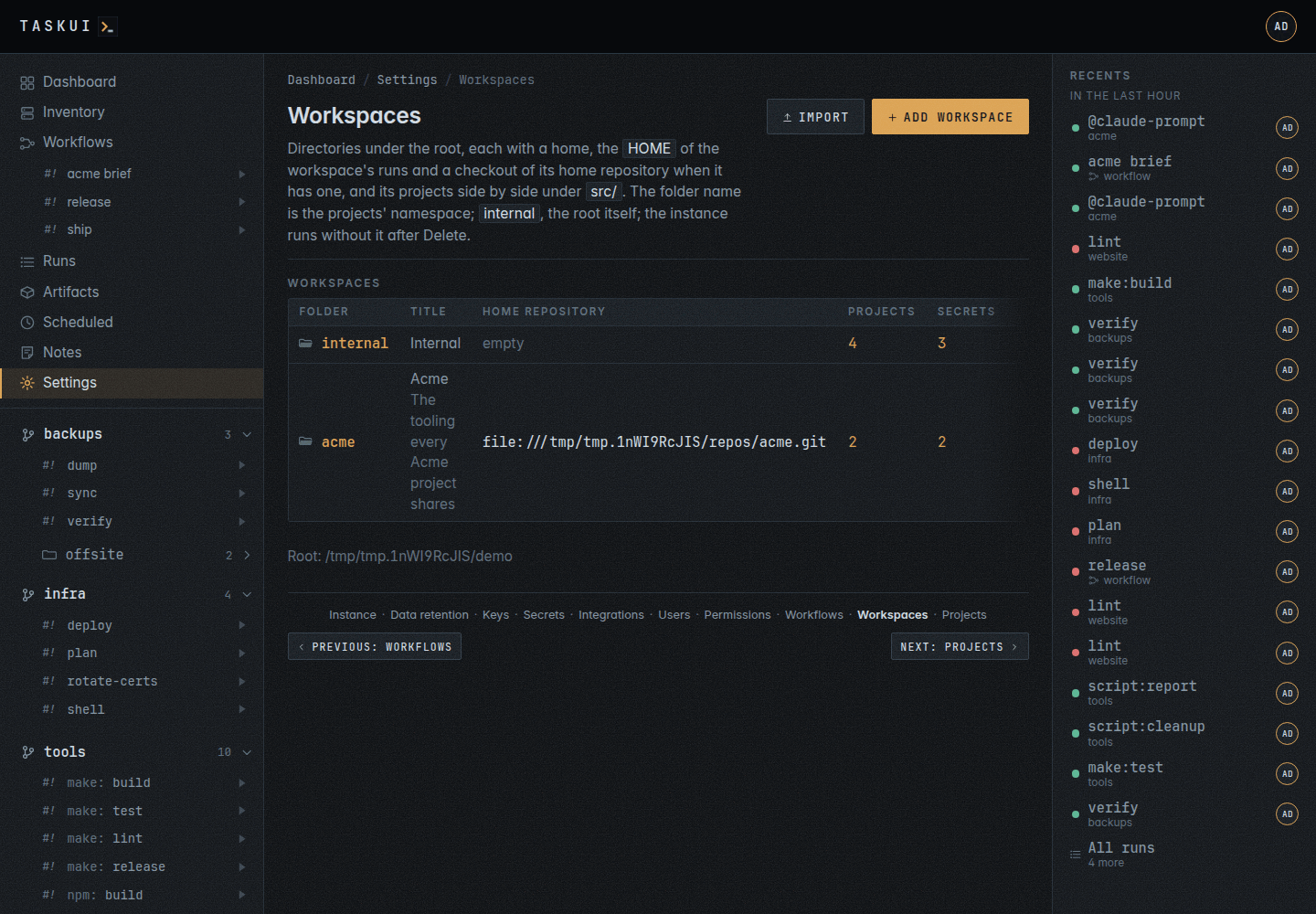
- Add workspace makes the directory under the root, the folder you name, with
home/andsrc/in it. A Home repository clones that repository intohome/, at its Home branch when you name one; left out, the home is an empty directory. The clone works, or the page shows git’s output and keeps nothing. task-ui refuses a folder that a workspace, a project or a directory under the root holds already, andinternal,_(its earlier name),homeandsrc, its own names. - Any number of workspaces may take the same home repository, each under its own folder: two teams can start from the same tooling and clone different projects beside it.
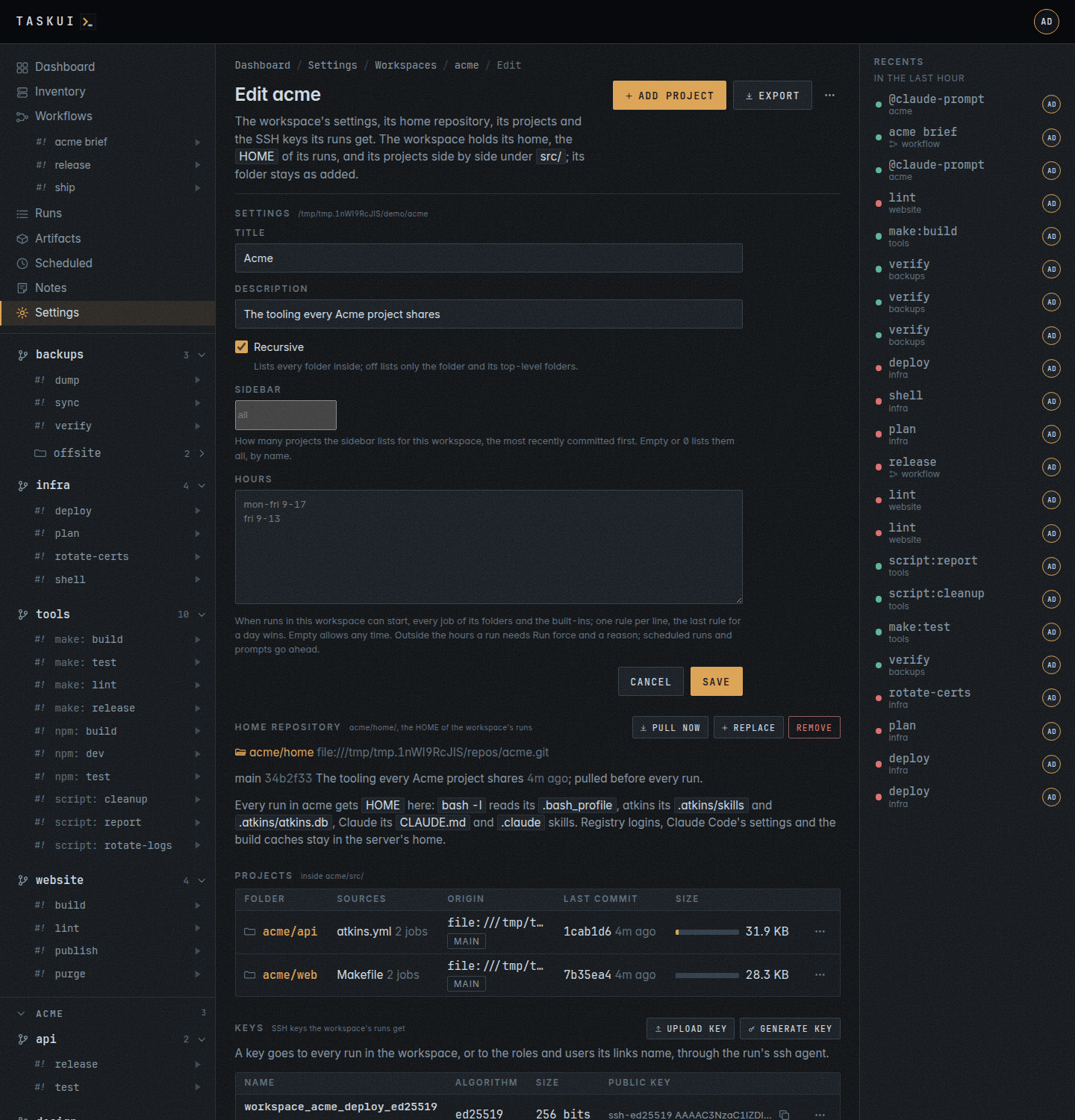
- Edit workspace opens the workspace’s settings page. Its Settings change the title, description, Recursive, which, as a project’s does, lists the folders inside it as deep as they go, or, off, the workspace and its top-level folders alone, and Sidebar, how many of its projects the sidebar lists, the most recently committed first, empty for every one (see In the sidebar); the folder stays. Its Home repository shows the repository and branch of the home with what git knows of the checkout, or “The home is an empty directory.”, and beside it Pull now, the home’s
@git:pull, Replace, or Clone while the home is empty, which removes the home and clones a repository in its place, and Remove, which removes the checkout and leaves the home an empty directory. Replace and Remove refuse, a409, while a run of the workspace is active: the home is that run’sHOME. Its Projects lists the projects inside it in the table of the Projects page, and Add project, at the top right, clones one into itssrc/. - Move up and Move down, in a workspace’s ⋯ menu, change the order of the workspaces, in the sidebar and on the page. An added workspace goes last. The default workspace lists first and keeps its place.
- Delete, last in the menu, deletes every project inside the workspace with its checkout and its row, the env files task-ui keeps for them, the workspace’s variables and its keys, and the workspace’s directory with everything in it, the home included; its confirm names those projects first. It refuses, a
409, while a run of the workspace is active. A workspace that holds a variable has no Delete: the menu says Delete its N variables first and opens its Secrets page, andDELETEanswers409until you delete each one by hand. A delete never takes a variable with it unseen. The default workspace, the root, deletes the same way: its projects at the root with their checkouts, their env files, its keys and its home go, and so does its row; the root directory stays with the named workspaces in it. - Import, at the top right for an admin, adds a workspace from a bundle another instance exported (see Move to another instance).
Delete the default workspace
An instance runs without a default workspace. Without internal, the Workspaces page lists the named workspaces alone, and task-ui makes no home/ or src/ at the root again. What changes:
- Add project needs a workspace: the Workspace select lists the named ones, and
POST /api/projectswith noworkspaceanswers400“pick a workspace: the instance has no default workspace”. - The Projects page, the dashboard and the sidebar list no projects at the root; the sidebar starts with the workspaces.
/f/internalstill opens: the root’s page, with its built-in jobs,@host:*,@forgejo-syncand@cleanup, which keep running, on their schedules too. A run of one of them has no workspace: noTASK_UI_WORKSPACE, noTASK_UI_WORKSPACE_DIR, andHOMEstays the server’s. Its keys are the instance keys linked to it, as before.- A prompt at the root, and
@claude-noteon the Notes board, run in the root directory with the server’sHOME. - The Secrets page has no
internalworkspace to choose; a variable of scopeallstill reaches every named workspace. The integrations’ settings, under the instance key, stay. - A workflow step lists
internalas a place only for the root’s own jobs.
Like any workspace, internal deletes once it holds no secret and no run of the root is active: delete its variables by hand first, then Delete.
Clone a project into one
Add project under Settings, Projects has a Workspace select. internal, the default, while the instance has it, clones the project into src/ at the root; a named workspace clones it into its src/, as malta/dockerfiles. The Projects page lists it under that name. In the API an empty workspace means internal, and answers 400 on an instance without a default workspace. A project may not take a workspace’s name, home, src or a directory that’s there already: that answers 409, or 400 for one of task-ui’s names, before git runs.
A checkout in the workspace’s src/ without a project row lists too, when it holds a job source anywhere inside it, such as malta/deploy with its scripts/atkins.yml: it opens at /f/malta/deploy with its jobs and the folders inside it, as a project does (see Where the jobs come from). A checkout that a project’s .gitignore ignores right below it lists the same way.
Recursive, on the workspace’s add and configure forms as on a project’s, is on by default: discovery lists the folders inside the workspace as deep as they go. Off, it lists the workspace’s top-level folders alone, and the projects inside it by their own Recursive.
The API does the same, with a token from task-ui token:
curl -s -X POST https://task.example.com/api/workspaces \
  -H "Authorization: Bearer $TOKEN" \
  -d '{"folder": "malta", "title": "Malta", "url": "git@example.com:org/workspace.git"}'
curl -s -X POST https://task.example.com/api/projects \
  -H "Authorization: Bearer $TOKEN" \
  -d '{"url": "git@example.com:org/dockerfiles.git", "workspace": "malta"}'
curl -s -X PUT https://task.example.com/api/workspaces/malta/home \
  -H "Authorization: Bearer $TOKEN" \
  -d '{"url": "git@example.com:org/workspace.git", "branch": "main"}'
The create’s url is optional: with it, the home is a clone of that repository at branch, its default branch when left out; without it the home is an empty directory. The reply is {workspace, output}, git’s output in output. A taken folder answers 409. PUT /api/workspaces/malta with {title, description} changes its text, recursive its Recursive, and DELETE /api/workspaces/malta removes it. PUT /api/workspaces/malta/home with {url, branch} replaces the home with a clone, DELETE /api/workspaces/malta/home empties it, and both answer 409 while a run of the workspace is active. A workspace’s row names its home repository in home_url and home_branch, "" for an empty home. A sort in the PUT places the workspace: the lowest comes first, and workspaces of one sort go by folder. Left out, the sort stays. A sidebar_limit in the PUT is the Sidebar setting, 0 for every project; below 0 answers 400, and left out it stays.
In the sidebar
The projects at the top of the root come first, by name, and the workspaces follow them, in their order. A workspace adds a level above its projects: a label row with the workspace’s name, the count of its projects and a chevron that points down while it’s open. Under it come the workspace’s own jobs, then its projects, each with a fold of its own: every directory right inside the workspace’s src/, a checkout with jobs or without; the home never shows in the sidebar, pinned or not; its files are on the workspace’s page. This browser remembers each fold apart, and malta and malta/dockerfiles open and close on their own.
A workspace with many projects lists the ones in use: Sidebar in its settings takes a number, and the sidebar lists that many of the workspace’s projects, the ones with the most recent commit first, a checkout without a commit last, and ties by name; the folders inside a kept project stay with it, and the listed projects keep the sidebar’s name order. Empty or 0 lists every project, by name. A project set not to show takes no place in the count. The rest leave the sidebar alone: the Projects page, the workspace’s page, the dashboard and a pin list them as before. The default workspace, internal, takes the setting for the projects at the root. task-ui reads each project’s last commit with one git command and keeps it a minute. A page costs at most one git process per project per minute, and a pull or a push shows in the order within the minute. Pin workspace in the [...] of the workspace’s page, and Pin on a folder or a job inside it, add to what the sidebar lists, for you (see What the sidebar lists). With no named workspace, the sidebar lists the projects alone (see Projects and jobs).
Runs in a workspace
A run of a job in the workspace or in one of its projects gets two more variables (see Runs):
TASK_UI_WORKSPACE, the workspace’s folder, such asmalta, orinternalfor a project at the root;TASK_UI_WORKSPACE_DIR, its directory, such as<root>/malta, or the root forinternal;HOMEandTASK_UI_HOME, the workspace’s home,<root>/malta/home, or<root>/homeforinternal(see The home).
A run at the root of an instance without a default workspace gets none of them: HOME stays the server’s.
Before the job, the run pulls a home that holds a checkout, then the project’s checkout, and the shared tooling is current when the job starts. When either pull fails, the run fails with it.
Hours
Hours on a workspace’s settings page says when runs in the workspace may start: every job of its folders and projects, the built-ins such as @shell too. One rule per line, days then a span; the last rule that covers a day decides it:
mon-fri 9-17
fri 9-13
runs Monday to Thursday nine to five, Friday mornings, and never on the weekend. Days are names or ranges (mon-fri, sat,sun, weekdays, daily); spans are hours or hh:mm. Empty, the default, allows any time. The workspace is the one place hours live: a project and a job take their workspace’s, and the default workspace’s apply to the projects at the root.
Out of hours Run fails, and Run force asks why: it needs a reason, keeps it with the run, and every list of runs shows it. A schedule and a prompt go ahead at any time: the schedule is the decision, and a prompt runs none of the folder’s jobs.
Keys
Every workspace has SSH keys of its own, in the key folder, TASK_UI_SSH_DIR, out of its directory, where a git add -A would publish them: workspace_<folder>_<name>_<algorithm>.key and .pub, the files 0600. The Keys section of a workspace’s settings page, /settings/workspaces/malta, lists them in the keys table of the Keys page, name, algorithm, size, public key with its copy button, purpose and the ⋯ menu, never a private key. With none, it says “No keys added.” beside Upload key and Generate key.
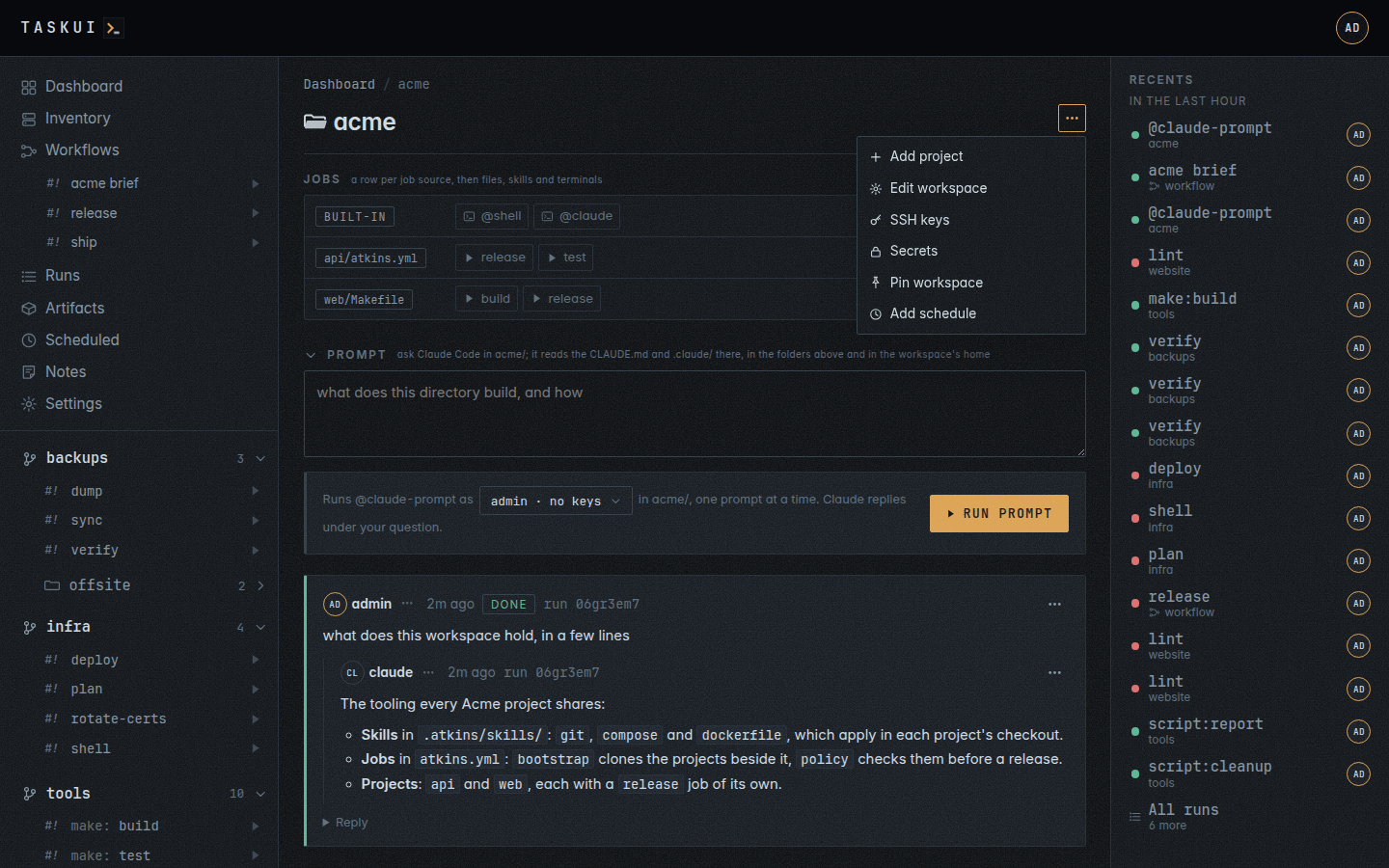
SSH keys, in the ⋯ menu at the top right of the workspace’s page, /f/malta, opens /settings/workspaces/malta/keys, the workspace’s keys alone, added in place: Generate key and Upload key at the top right open their forms in a dialog over the list, and Remove retires a key. There is no form that asks whose runs get one: a key added here is a key of this workspace, so every run of this workspace gets it. The page and the menu item take workspace/view, the forms workspace/edit, as the key routes do.
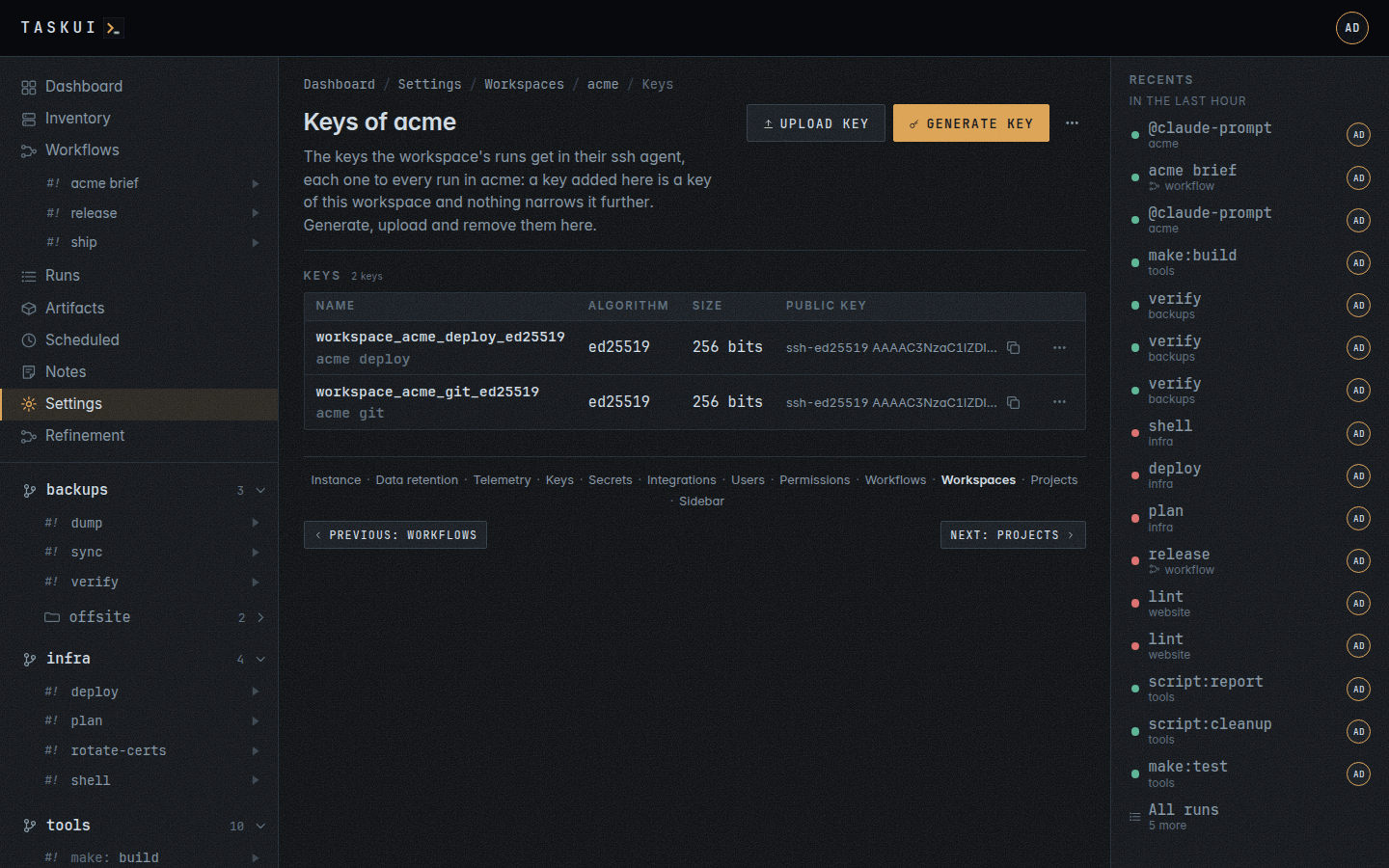
- The SSH keys, zero or more, are for the workspace’s runs. A workspace has no encryption key: the instance’s encrypts its secrets, as every secret. Generate or upload any number, each under a name of its own,
workspace_malta_deploy_ed25519. Each goes to every run in the workspace, and nothing narrows it further: the workspace it was added to is the answer to who gets it. Remove retires the key. With none, task-ui can’t SSH to the workspace’s hosts with a key of its own: its runs get only the instance SSH keys linked to them.
A key has one use (see One key, one use): an upload of key material the key folder holds already, under any name, answers 409.
A run gets the instance keys linked to it (see Settings), then its workspace’s SSH keys, and the first line of its terminal names each: $ ssh-agent: deploy_rsa4096, workspace_malta_deploy_ed25519. A project at the root gets the keys of internal. The links decide what reaches a run’s agent; a job can still open any key file on disk (see What a workspace keeps apart).
curl -s -X POST https://task.example.com/api/workspaces/malta/keys/generate \
  -H "Authorization: Bearer $TOKEN" \
  -d '{"algo": "ed25519", "name": "deploy", "policies": ["admin"]}'
curl -s https://task.example.com/api/workspaces/malta/keys \
  -H "Authorization: Bearer $TOKEN"
PUT /api/workspaces/malta/keys/workspace_malta_deploy_ed25519 with {policies, users} sets the links, empty for every run, and DELETE retires the key. "encrypt": true on generate or upload answers 400: one encryption key per instance. Listing the keys takes workspace/view; the other key routes take workspace/edit.
Secrets and env
A workspace’s variables reach its runs (see Settings). A variable of scope workspace:malta reaches every folder in it; a project’s own, scope malta/deploy, reaches that project, and a run there reads the project’s entry of a name the workspace also holds. A variable of scope all reaches every workspace. The variables of internal reach the projects at the root and no named workspace unless their scope is all: a project in malta gets malta’s own variables, the all ones and its own, never internal’s. The instance’s encryption key encrypts them all.
Secrets in the ⋯ menu at the top right of the workspace’s page opens /settings/secrets?workspace=malta, the variables that reach that workspace, on the one page that manages them. It takes secret/view; adding, editing and deleting take secret/edit and secret/delete.
Move to another instance
A workspace moves to another task-ui as a bundle, <folder>.tui.age: a tar.gz of manifest.json and .ssh/, encrypted with age to a passphrase of at least 12 characters. Whoever holds the file and the passphrase holds the workspace’s variables and SSH keys: the passphrase is their only protection inside it, and task-ui keeps no copy of the passphrase. To move a workspace, export it, import the bundle on the other instance, then delete its variables here by hand, which Delete needs, and then the workspace.
The bundle carries:
- the workspace’s row: title, description, sort and Recursive, as
shallow; - its home repository and branch in
home,{url, branch}, empty for an empty home; - its projects, by folder relative to the workspace, with their repository, branch and settings;
- its env files, by folder and path;
- its variables in plain text in
manifest.json, which the importing instance encrypts with its own encryption key as they go into its vault; - the SSH keys the workspace’s runs get, its own keys, as
.ssh/<name>.keyand.ssh/<name>.pub, and their links; an import names them after its folder,workspace_<folder>_....
It never carries the instance’s encryption key, the instance’s SSH keys or another workspace’s keys. Schedules, workflows, runs and artifacts stay on the instance, as do the integrations. The bundle of internal leaves out the named workspaces.
Export at the top right of a workspace’s settings page, which an admin sees, opens a dialog for the passphrase, typed twice, or made by Generate: 24 random characters, shown once with a copy button. Store it before you export, since nothing recovers it. Export in the dialog then downloads the bundle; the passphrase goes in the request body, never in the URL or the logs. Import at the top right of the Workspaces page opens a dialog for the file, the passphrase and the folder to import it as, the bundle’s own when left out. The folder must be free, as for Add workspace: a folder held answers 409. The import makes the workspace’s directory with its home and src, writes the keys 0600 into the key folder, adds the rows under the folder, clones the home repository into the home, clones each project into src, then writes the env files into the folders the clones made. A bundle of another format answers 400: the format is 4, and an older bundle does not import. A project that does not clone keeps its row, and the import reports git’s output for it. Any failure before the projects’ clones rolls the import back: no directory, no keys, no rows stay. Env files and secrets that a removed workspace of the same folder left behind take the bundle’s content.
The import refuses a key it would hold twice, and renames none. A bundle whose SSH key this instance holds, under any name, or whose key name the key folder holds answers 409 with the key’s name before it clones anything. A workspace exported and imported again on the same instance needs the original removed first, or another instance.
The bundle of the default workspace, internal, imports as a named workspace and needs a folder, such as legacy. Its projects move under that folder, web becomes legacy/web, and its shared secrets become legacy’s; the workspace’s title is the folder.
curl -s -X POST https://task.example.com/api/workspaces/malta/export \
  -H "Authorization: Bearer $TOKEN" \
  -d '{"passphrase": "correct horse battery"}' -o malta.tui.age
curl -s -X POST https://other.example.com/api/workspaces/import \
  -H "Authorization: Bearer $OTHER_TOKEN" \
  -F bundle=@malta.tui.age -F passphrase='correct horse battery' -F folder=malta
The import answers {workspace, home, projects, unknown_users}: the home and each project with cloned and git’s output, and the users the grants name that the instance doesn’t have. Their grants stay and reach a run once a user of that name exists. An export’s passphrase under 12 characters, a wrong passphrase on import, a file that is not a bundle, and an entry other than manifest.json or a .key or .pub file of .ssh/ answer 400; bundled keys held here answer 409, and a file over the upload limit 413. Both routes take an admin, 403 for anyone else, with or without workspace/edit: the bundle alone, of everything task-ui hands out, holds private keys, inside its passphrase, and the import writes them into the key folder.
| Limit | Size |
|---|---|
| The bundle file | 64 MiB |
manifest.json |
16 MiB |
| Each key file | 1 MiB |
| Entries | 1024 |
What a workspace keeps apart
A workspace decides what task-ui puts into a run: which secrets go into its environment and which SSH keys go into its agent. That is no sandbox. Every run runs as the server’s OS user, in every workspace, and a job can read what that user can:
- every key file of the key folder,
TASK_UI_SSH_DIR, the encryption keys among them; in the image, mount only/keysthere; - the database, with every workspace’s secrets as ciphertext, which the keys beside it open;
- every checkout under the root, the homes among them, sealed entries such as
.gitand.envincluded: sealing keeps them off the pages and the API; a job still reaches them.
A job that someone in one workspace can change can read another workspace’s secrets, and whoever commits to a workspace’s home repository controls that workspace’s runs: its .profile, skills and CLAUDE.md run in every one of them. Runner rights, and the right to push to a workspace’s repositories, its home repository first, belong with people you would trust with every workspace on the instance; where that does not hold, run one instance per trust boundary.
A prompt against a workspace
A workspace’s folder page, /f/malta, carries the Prompt box open for a user with Allow Edits on Prompts, prompt/edit, once the Claude Code integration has a token for them; every other folder page, and every directory inside a folder, carries it folded until its directory holds a prompt (see Prompt). The prompt runs @claude-prompt of the workspace as you, and Claude’s answer shows under the question when the run ends.
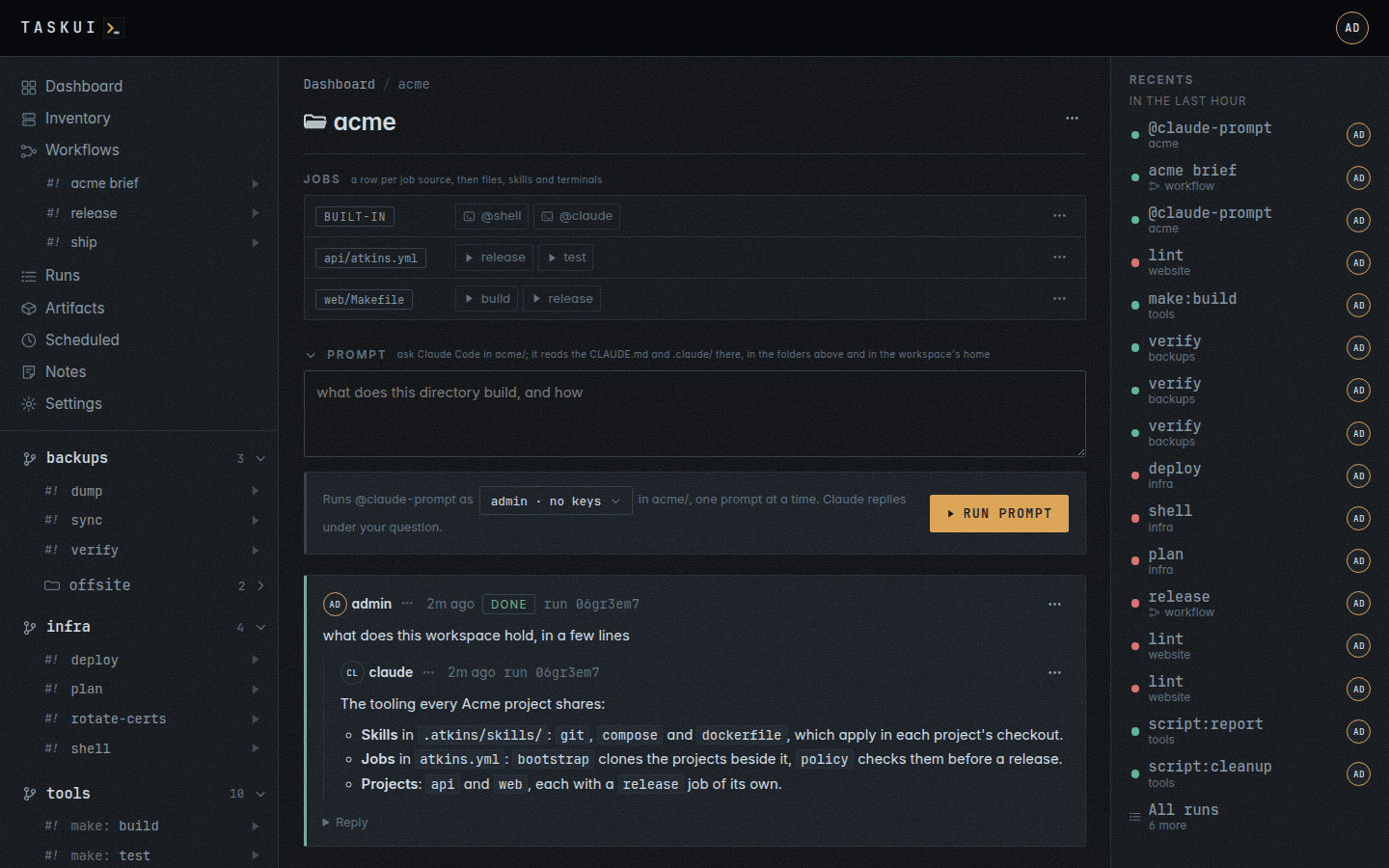
Claude Code works in the workspace’s home and reads the workspace’s CLAUDE.md and .claude/, in an empty home too. The run’s environment holds the thread in TASK_UI_PROMPT, the home in TASK_UI_HOME, the workspace’s directory in TASK_UI_WORKSPACE_DIR, and the file Claude writes its answer to in TASK_UI_PROMPT_REPLY. task-ui agent prompt works in TASK_UI_PROMPT_DIR, which a prompt of a folder or a directory sets, or else in TASK_UI_HOME, or else in TASK_UI_WORKSPACE_DIR, and exits with an error when the prompt or all three are empty. The run lists under Runs as the workspace’s, malta/@claude-prompt.
curl -s -X POST https://task.example.com/api/workspaces/malta/prompt \
  -H "Authorization: Bearer $TOKEN" \
  -d '{"prompt": "list the skills this workspace carries"}'
The reply is the note, with its id, and its run_id once the run starts; Claude’s answer is a reply to it, which GET /api/prompts?folder=malta lists. The run starts in the workspace’s home and holds it as POST /api/prompts holds one: a second prompt there waits for it, and a prompt in a project of the workspace runs beside it.
Previous: Projects and jobs · Next: Recents · Contents